PRISM Comp - FE76 User Manual
1. Introduction
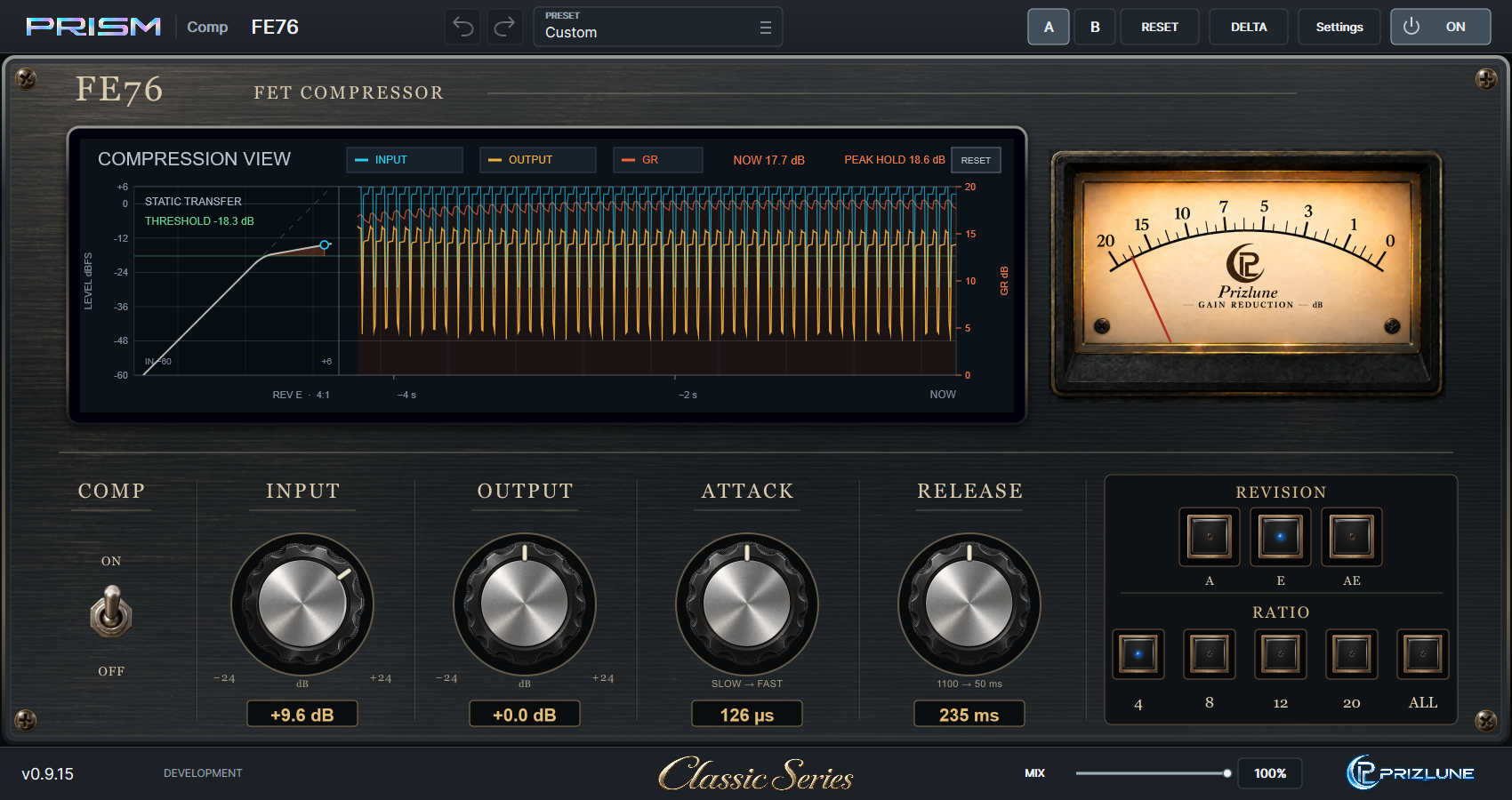
PRISM Comp - FE76 is a FET-style compressor with three characters, A / E / AE. Use INPUT to drive compression, ATTACK and RELEASE to shape the envelope, and OUTPUT to match the level. The monitor combines the static compression curve, signal history and gain reduction.
Quick start
- Insert [FE76] PRISM Comp on a mono or stereo audio track.
- Select E and 4:1. Leave COMP ON and MIX at 100%.
- Raise INPUT until the GR meter shows the amount of compression you want.
- Adjust ATTACK / RELEASE, then match the output level with OUTPUT.
- Compare with POWER and try MIX for parallel compression.
The trial and the full version use the same installer. The 14-day trial offers every feature of the full version.
2. Installation
Requirements
- Windows (64-bit) and a 64-bit DAW that supports VST3
- A Prizlune account (free), and an internet connection when you start a trial or activate
Download
Download the ZIP from the product page at prizlune.com/products/fe76/. The trial and the full version use the same installer, so buyers use this one too.
Installing
- Right-click the downloaded ZIP and choose "Extract All".
- Run
Install PRISM Comp - FE76.exefrom the extracted folder. - If "Windows protected your PC" appears, click "More info" and then "Run anyway". The installer has no code signature, so this warning may appear.
- When asked "Do you want to allow this app to make changes to your device?", click "Yes". Writing to the shared VST3 folder requires administrator permission.
- Choose a language, accept the licence agreement and follow the instructions.
Installed to: C:\Program Files\Common Files\VST3\PRISM Comp - FE76.vst3
Loading it in your DAW
Start your DAW and rescan plug-ins if needed. The plug-in appears as [FE76] PRISM Comp (vendor: Prizlune).
Right after installation it is NOT ACTIVATED, and audio passes through unprocessed. Follow the next chapter to start a trial or activate the full version.
Updating
Run the installer of the new version in the same way to install over the old one. Your licence, presets and display settings are kept.
Uninstalling
Run Uninstall PRISM Comp - FE76.exe from the ZIP, or remove it from Windows Settings > Apps. Your licence and presets are not deleted, so a reinstall works straight away.
3. Activation and Trial
To use PRISM Comp - FE76, start a trial or activate the full version with your Prizlune account (free). Before that you can still change parameters, use presets and save projects, but audio passes through unprocessed.
Status
| Footer status | Meaning | Audio |
|---|---|---|
| NOT ACTIVATED | Neither a trial nor the full version is active | Passes through |
| ACTIVATING | Waiting for approval in your browser | As before |
| TRIAL · N DAYS LEFT | Trial running; N is the days left (1 DAY LEFT on the last day) | Processed |
| TRIAL ENDED | The trial period is over | Passes through |
| FULL | Full version | Processed |
Click the footer status to open the licence screen. While NOT ACTIVATED or TRIAL ENDED, a notice bar appears at the top of the product view.

Starting the trial (14 days)
- Click START TRIAL in the notice bar. My Prizlune opens in your browser.
- Sign in with your Prizlune account. If you don't have one, you can create it on that page.
- Check that the code in the browser matches the code in the plug-in, then click Start trial on this computer.
- When the footer shows TRIAL · 14 DAYS LEFT, you're done.
Each account can use the trial once per product, and each computer once as well. During the trial every feature works as in the full version.
Activating the full version
- Buy the product at prizlune.com. It is added to the Prizlune account you buy with.
- Click ACTIVATE in the plug-in (notice bar or licence screen).
- Sign in with the account you bought with, check the code and click Activate on this computer.
- When the footer shows FULL, you're done.
Waiting for approval
After START TRIAL or ACTIVATE, a waiting screen opens in the middle of the plug-in. It shows a large code in the form XXXX-XXXX and the time remaining. Approve the request in your browser within 10 minutes. Once approved, the licence is saved on this computer and takes effect immediately.
- REOPEN BROWSER: opens the approval page in your browser again.
- CANCEL (or Esc): stops the activation and returns to the previous state.
Licence screen
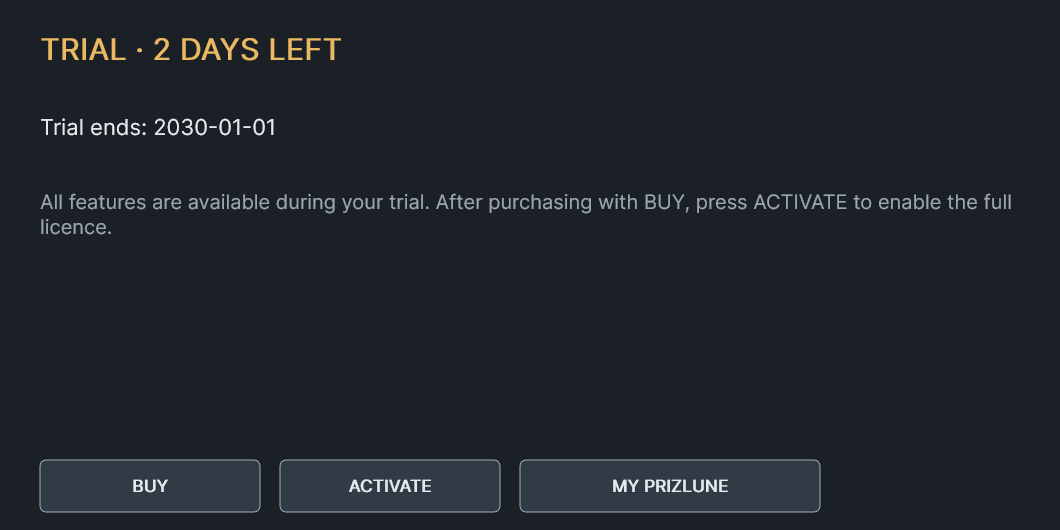
Open it from the footer status or from License at the bottom left of Settings. Close it with the × at the top right or Esc.
- Trial: shows the end date. BUY opens the purchase page; after buying, ACTIVATE switches to the full version. MY PRIZLUNE opens the member page.
- Full: shows the registered email, this computer's name and the activation date. RELOAD LICENSE reads the saved licence again.
Buying during the trial, and when it ends

When the trial ends, the TRIAL ENDED notice bar appears and audio passes through. Your settings and projects are kept. Buy with BUY and activate with ACTIVATE to keep using it.
Several computers and offline use
- License activation connects when you press START TRIAL or ACTIVATE. Activated products work offline. Optional update checks can be disabled in Settings.
- As long as you use your own account, there is no limit to the number of computers. On a new computer or after reinstalling Windows, press ACTIVATE there. You don't need to deactivate the old one.
- You can see your products and activated computers on My Prizlune (account.prizlune.com).
4. Controls
| Control | Range and purpose |
|---|---|
| COMP | ON enables gain reduction. OFF stops compression but keeps input/output gain and coloration active. |
| INPUT | -24 to +24 dB. Changes level before compression and the input color stage. |
| OUTPUT | -24 to +24 dB. Changes the final wet-path level without moving the static compression curve. |
| ATTACK | 800 to 20 microseconds, slow to fast as you turn clockwise. Continuous range with no OFF or SLO position. |
| RELEASE | 1100 to 50 ms, slow to fast clockwise. Audible recovery also depends on signal and gain-reduction history. |
| RATIO | Selects compression ratio; available buttons depend on REVISION. Shift-click adds or removes buttons. |
| REVISION | A / E / AE changes compression response and coloration. |
| MIX | 0% original input to 100% processed signal. Applies to both A/B banks. |
Editing knobs
Drag vertically to change a value; hold Shift for fine adjustment. Use the mouse wheel or arrow keys for steps. Double-click restores the knob default. Drag the MIX slider horizontally. A continuous drag is one plug-in Undo step.
COMP and POWER
Click the COMP lever to toggle compression, or its ON/OFF labels to select a state. Enter toggles the focused switch; Up/Down selects ON/OFF. POWER in the header bypasses the complete product, including its gain and coloration stages. COMP OFF and POWER OFF therefore serve different purposes.
ATTACK/RELEASE markings describe control settings. Measured response varies with the program material and compression depth. FE76 is not an output peak limiter; check your DAW meters for overloads.
5. Revision and ratio combinations
| Revision | Available ratios |
|---|---|
| A | 4:1 / 8:1 / 12:1 / 20:1 |
| E | 4:1 / 8:1 / 12:1 / 20:1 |
| AE | 2:1 / 4:1 / 8:1 / 20:1 |
Single and multiple buttons
- Normal click: selects one ratio and releases the other buttons.
- Shift-click a ratio: adds it, or releases it if already selected. At least one button remains selected.
- ALL: presses all four available buttons, with or without Shift. ALL is not a separate fifth ratio.
- Shift-click a ratio while ALL is active: releases that button and leaves the remaining combination.
The lit buttons show the actual selection. When all four are selected, the ALL lamp is also lit. Multiple-button behavior is not the arithmetic average of the displayed ratios. The outside selected buttons determine the compression family; the complete selection remains visible and is saved.
Changing revision
A/E have 12:1 but no 2:1; AE has 2:1 but no 12:1. Switching revision keeps the buttons available in the new revision. If none remain, 4:1 is selected. ALL remains all four buttons of the new revision.
Saving and automation
Revision, complete ratio combinations and COMP are stored separately in A/B and saved in presets and DAW projects. The DAW parameter Ratio selects a single ratio or ALL; Ratio Buttons records multiple-button selections. For combinations, automate Ratio Buttons rather than simultaneously writing a conflicting Ratio value.
A, E and AE are FE76's alternative response characters. They are not a guarantee that distortion or frequency-response rankings match a particular hardware revision.
6. Reading the compression view
| Display | Meaning |
|---|---|
| INPUT / OUTPUT | Cyan input after INPUT gain; yellow actual final output including OUTPUT, MIX and DELTA. |
| GR | Orange applied wet-path gain reduction. The right axis is 0 dB at the bottom and 20 dB at the top. |
| NOW / PEAK HOLD | NOW is the latest displayed GR bucket. PEAK HOLD retains the maximum observed since opening or resetting. |
| Small RESET | Always visible next to PEAK HOLD. Starts the held maximum again at the current NOW value. |
Curve, marker and shaded area
The left graph uses -60 to +6 dBFS on both axes. A thin dotted diagonal is the 1:1 reference. The cyan circle follows the input level on the static compression curve. Above +6 dBFS the circle stays at the endpoint. The green line is Threshold; the orange translucent area is bounded by Threshold, the curve and the circle's vertical line. There is no output circle.
INPUT changes the waveform and marker; OUTPUT and MIX change the actual output waveform. None of these controls moves the static compression curve. The curve and shaded area describe the static characteristic, not the instantaneous measured output or GR.
History and visibility
History moves from past on the left to NOW on the right, covering about 4.3 seconds. The -4 s / -2 s marks show an overview, not microsecond attack timing. The left LEVEL dBFS scale belongs to input/output; the orange GR dB scale belongs to GR.
Click INPUT / OUTPUT / GR in the legend to hide or show that trace. INPUT also hides its circle; hiding INPUT or GR hides the curve area. The numeric GR readouts remain. Visibility and UI size are remembered per product. PEAK HOLD can exceed the visible history maximum; RESET clears only its hold. Values above 20 dB remain numeric even though the GR graph clips at 20. POWER OFF darkens the monitor.
7. Comparison, presets and settings
A/B, RESET and Undo
A and B are separate settings banks. INPUT/OUTPUT/ATTACK/RELEASE, revision, ratio combination and COMP are stored in each bank. MIX, POWER and DELTA are shared. The large RESET in the header restores the active bank's defaults and enables COMP, while keeping MIX and the other bank. It does not have the same function as the small Peak Hold RESET.
Undo / Redo steps through plug-in edits. A knob or MIX drag is one operation. This is separate from the DAW's Undo history. Switching A/B clears the plug-in edit history.
Presets
- Click PRESET to open the shared browser.
- Use Factory / User and search to find a setting, then select it to load into the active bank.
- Use the browser's save operation to save the current settings with a name.
Presets store the active bank's sonic controls, COMP, complete ratio selection and shared MIX. A DAW project stores both banks and shared state. Display visibility and Peak Hold are not sonic preset parameters.
MIX and DELTA
MIX blends the original input with the full processed path, with a short ramp when changed. DELTA auditions the removed compression component, scaled by MIX. COMP OFF or MIX at 0% makes DELTA silent. It is not simply a level-matched difference between the full output and input, because the product has gain and coloration stages as well.
Settings and footer
Settings contains Display size and Language. Automatic follows Windows display language; English and Japanese can be selected explicitly. Updates turns the roughly once-a-day automatic check on or off and offers a manual check. When a newer version is available, a quiet notice appears near the version display and leads to the product page. A failed check never affects audio processing or saving. The PRIZLUNE logo opens the FE76 product page.
8. Updates and the product page
Released editions include update checks. When you open the editor, the plug-in checks the public download in the background, approximately once per day. You do not need to sign in again to check for updates.
Update notification
When a newer publication is available, UPDATE appears near the version in the footer. Click it to open this product's page. Read the release information and download the update. Close your DAW before installing the downloaded update.
Settings → Updates
| Control | Action |
|---|---|
| Automatic | ON by default. Turn it OFF to disable automatic requests. This is remembered as a product preference, separate from sound settings. |
| Check now | Checks immediately, including when automatic checks are OFF. |
| Product page | Opens this product's page after public information has been received. The PRIZLUNE logo at the bottom right also opens the product page at any time. |
Working offline
If the check cannot retrieve information, check your connection and try manually later. A failed update check does not stop audio or project saving. The product continues its normal behavior for its license state; activated products work offline.
Update checks are independent of audio processing. Changing automatic checks or using a notification does not alter your sound or the parameters stored in a DAW project.
9. Practical use and troubleshooting
Working with transients
Start with 4:1 and a moderate INPUT level. Slower ATTACK can leave more of the initial transient; faster ATTACK catches it sooner. Adjust RELEASE so recovery follows the source's rhythm. Compare at similar output levels. For stronger coloration or multiple ratios, reduce OUTPUT as needed and check the DAW meters.
Parallel compression
Set a strong compressed sound at MIX 100%, then lower MIX to blend the original input back in. This changes the balance without moving the static curve. POWER bypasses the complete effect for comparison.
| Symptom | Check |
|---|---|
| Plug-in is missing or offline | Confirm Windows x64 / VST3 support, the VST3 location and a completed DAW rescan. Restart the DAW after replacement. |
| No gain reduction | Check COMP ON and POWER ON. Raise INPUT or select a different ratio. Very low input can remain below the compression region. |
| Silent output | Check DELTA: it is silent with COMP OFF or MIX 0%. Also check DAW routing and OUTPUT. |
| PEAK HOLD differs from the visible GR peaks | The hold can outlast the 4.3-second history. Use its adjacent RESET button. |
| Input marker stays at the right edge | The curve ends at +6 dBFS. Lower INPUT and check the DAW meters. |
| Installer cannot replace the plug-in | Unload FE76 or close the host that has it open, then retry. |
| Output is louder or clips | Lower OUTPUT or INPUT. FE76 is not a peak limiter. |
Support
Visit prizlune.com/products/fe76/. Include the DAW name, sample rate, relevant controls and the steps needed to reproduce the issue.