PRISM EQ - FLEX Lite User Manual
1. Introduction
FLEX Lite is a free equalizer with six bands, each supporting dynamic EQ. Each band can process Stereo, Left, Right, Mid or Side. A free Prizlune account and activation are required. Once activated, you can use it indefinitely and offline.
Features
| Feature | FLEX Lite |
|---|---|
| EQ / dynamic EQ | Six bands; dynamics on Bell and Shelf types |
| Spectrum display | Your input/output and one other track overlaid |
| LOW MONO | Disabled; the original panel and frame remain visible |
| Compare and save | A/B, Undo/Redo, named presets and project recall |
Layout
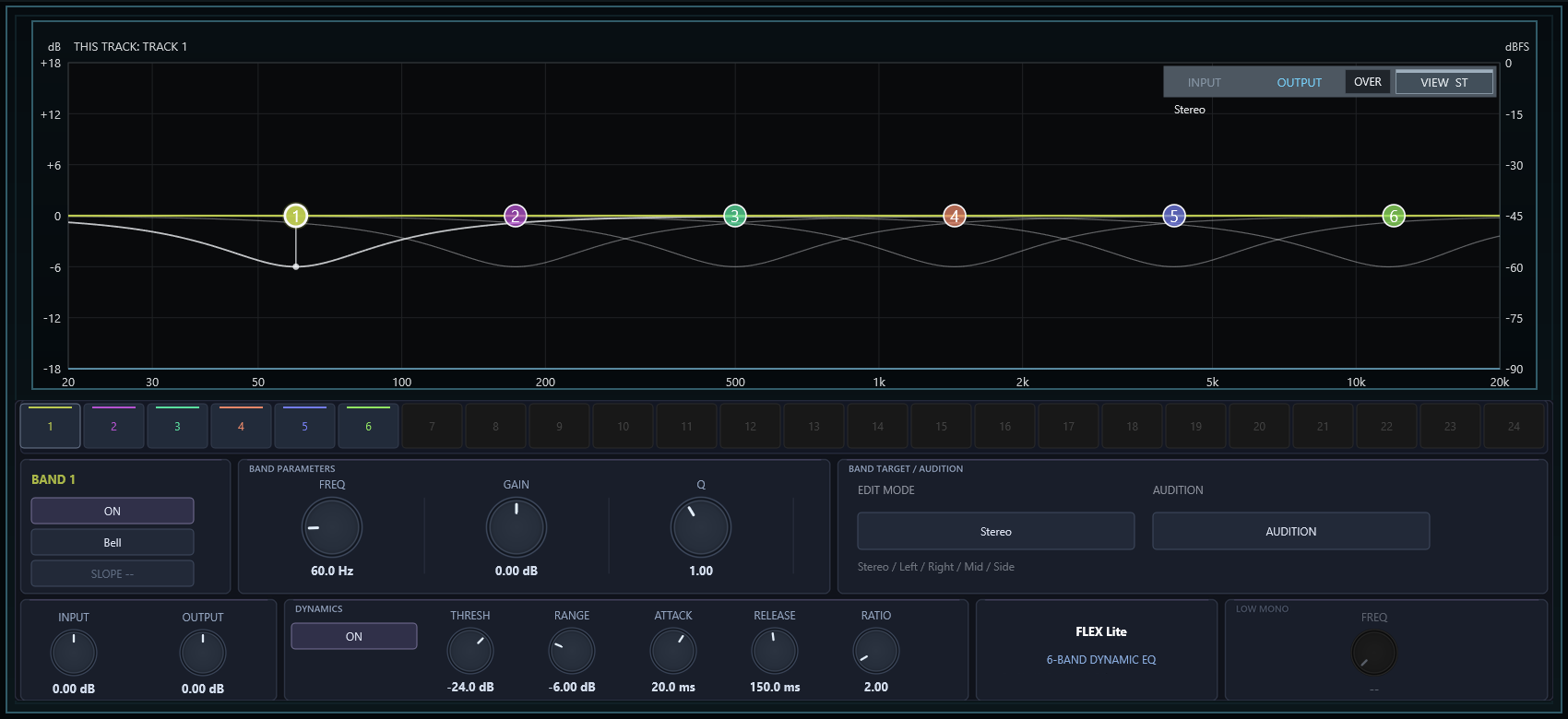
The header contains PRESET, OS, A/B, RESET, Settings and POWER. The center shows spectra and EQ curves; the lower panel edits the selected band. Click the licence status in the footer to check activation.
2. Installation and removal
Requirements
- 64-bit Windows and a 64-bit DAW supporting VST3.
- A free Prizlune account and internet access for initial activation.
Install
- Download the ZIP from prizlune.com/products/flex-lite/ and extract it using Extract All.
- Run
Install PRISM EQ - FLEX Lite.exe. Read the licence agreement, confirm the installation location and install. - Rescan VST3 plug-ins in your DAW, then insert [FLEX Lite] PRISM EQ.
- Click ACTIVATE and follow the next chapter.
The plug-in is installed to C:\Program Files\Common Files\VST3\PRISM EQ - FLEX Lite.vst3. It can coexist with the paid FLEX as a separate plug-in.
Windows may display a confirmation when the installer is unsigned. Confirm that you obtained the official Prizlune package before continuing.
Update or reinstall
Close the DAW before running a newer installer. Normal updates and reinstalls preserve activation and user presets. Use the FLEX Lite installer for this product.
Uninstall
Close the DAW, then run Uninstall PRISM EQ - FLEX Lite.exe from the extracted ZIP. You can also remove the product through Windows Installed Apps.
Removal affects the FLEX Lite plug-in. Activation and presets are retained. It does not remove FLEX or other Prizlune products.
3. Activate your free licence
FLEX Lite is free, but account registration and activation are required before use. Before activation, audio passes through without EQ processing. Controls and saving remain available.

First activation
- Click ACTIVATE in the plug-in.
- Sign in to your Prizlune account in the browser. If needed, create an account and complete email verification.
- Check the product, computer name and code against the plug-in, then choose Activate on this computer. Approve within ten minutes.
- Return to the plug-in. FULL in the footer confirms that your free licence is activated.
If the browser does not open, use REOPEN BROWSER on the pending screen. Use CANCEL or Esc to stop activation.
Offline use and another computer
Your activated licence has no expiry and works offline. Activate again in the new environment after replacing a computer or reinstalling Windows.
Licence screen
Open it from the footer status or License in Settings. It shows your registered address, computer name and activation date. RELOAD LICENSE reloads the saved licence. Close it with the top-right close button or Esc.
My Prizlune at account.prizlune.com lists your products and activated computers.
4. Read the monitor and start editing
Add or select a band
- Double-click empty graph space to add a Bell in the first unused slot. Nothing is added when all six bands are enabled.
- Click a number from 1-6 to select it. Double-click the number, or use its ON/OFF control, to enable or disable that band.
- Drag a round node horizontally for FREQ and vertically for GAIN. HPF, LPF and Notch do not use GAIN.
- Use the wheel over a node for Q. Drag knobs vertically or use the wheel; double-click a knob to restore its default.
- Click empty space to show NO BAND SELECTED. Click a number or node to select again.
Spectra and VIEW
INPUT and OUTPUT identify the input/output spectra. VIEW selects Stereo, Left, Right, Mid or Side, displayed as ST / L / R / M / S. VIEW affects the display independently of the band's processing EDIT MODE.
Curves and nodes
- Numbered nodes indicate each band's configured FREQ/GAIN. Filter and Notch nodes remain at 0 dB.
- Individual band-colored curves mark the settings. The selected band is emphasized; other bands in the same MODE are faint.
- MODE-colored combined curves show the result of the enabled bands. Overlapping bands can make the combined response differ from a node's configured GAIN.
- Dynamic gain changes appear in the combined curve. Nodes and individual setting curves stay at the configured GAIN.
STEREO is white, LEFT green, RIGHT red, MID blue and SIDE yellow. Do not add different MODE curves together to interpret total gain. OVER opens the other-track overlay settings.
5. EQ and routing
BAND n identifies the selected band. The band's ON/OFF and the dynamics ON/OFF are separate controls.
Filter selection
Click the button showing the current filter name, such as Bell.
| Filter | Main function | GAIN / Dynamics / SLOPE |
|---|---|---|
| Bell | Boost or cut near the centre | Yes / Yes / No |
| Low Shelf | Boost or cut low frequencies | Yes / Yes / No |
| High Shelf | Boost or cut high frequencies | Yes / Yes / No |
| HPF | Attenuate low frequencies | No / No / Yes |
| LPF | Attenuate high frequencies | No / No / Yes |
| Notch | Deep cut near the centre | No / No / No |
FREQ: 20 Hz-20 kHz; centre or corner frequency.
GAIN: -18 dB to +18 dB; unavailable for HPF / LPF / Notch.
Q: 0.10-40.0 for Bell/Notch; 0.10-1.5 for Shelves. It controls bandwidth or shape. It is unavailable on HPF/LPF.
SLOPE: 6 / 12 / 18 / 24 / 30 / 36 dB/oct for HPF / LPF. Every slope is a Butterworth response: -3 dB at FREQ with no peak near the cutoff.
EDIT MODE
Select the component processed by this band. Stereo processes both channels; Left / Right process one channel. Mid is the common component of left and right; Side is their difference. Each band has its own mode.
On mono input/output, enabled Stereo / Left / Right / Mid bands are applied serially to the single channel. Side bands have no effect.
AUDITION
Listen to the input frequency range associated with the band's frequency, Q and shape. This does not solo the processed EQ output or a Left / Mid / Side component. The band's GAIN is not applied to the audition signal.
The lit button identifies the band as AUDITION Bn. Press it again, select another band or close the editor to end audition. AUDITION is not stored in a project or preset.
6. Dynamic EQ
Enabling dynamics
Enable a Bell / Low Shelf / High Shelf band, then turn its dynamics ON/OFF on. The band and dynamics have separate switches. Detection uses the signal after INPUT trim and before the EQ bands.
| Control | Range | Function |
|---|---|---|
| THRESH | -72 to 0 dB | Detection threshold |
| RANGE | -12 to +12 dB | Maximum movement; negative reduces, positive boosts |
| ATTACK | 0.1-500 ms | Response to a rising level |
| RELEASE | 10-3000 ms | Return time after the level falls |
| RATIO | 1.0-20.0 | Movement relative to the level above threshold |
RANGE ghosts
A RANGE ghost shows the placement result if that band reaches its RANGE limit. It uses the band's own placement result as its baseline and the placement's colour. For the selected band, a vertical stem connects the current curve to the destination.
Numbered nodes and individual configured shapes stay at the configured GAIN. Follow actual gain movement in the result curve. RANGE 0 or RATIO 1 produces no dynamic gain change.
A practical starting point
- Choose the target range with FREQ and Q; use AUDITION to check the input band if useful.
- Set the direction and maximum movement with RANGE. Use a negative value for reduction.
- Adjust THRESH and RATIO so the result moves when needed.
- Adjust ATTACK and RELEASE, then compare with dynamics ON/OFF.
Dynamics is unavailable for HPF / LPF / Notch.
7. Global controls and comparison
INPUT / OUTPUT
INPUT: -24 dB to +24 dB, before the bands and dynamics detection.
OUTPUT: -24 dB to +24 dB, applied to the processed EQ branch. It does not change the dry signal returned by POWER OFF or host bypass.
LOW MONO is unavailable in FLEX Lite. The knob and labels are disabled and the value reads --.
OS (Oversampling)
Select 1x / 2x / 4x / 8x from OS in the header. Higher factors increase the internal processing sample rate and CPU load. Conversion filters also introduce phase changes, high-frequency attenuation and latency. Compare the sound and load rather than assuming the highest factor is always preferable.
| Factor | 1x | 2x | 4x | 8x |
|---|---|---|---|---|
| Reported latency at 44.1 / 48 kHz | 0 | 4 | 5 | 5 samples |
Upper-band attenuation depends on sample rate; at 44.1 kHz / 8x it is about 3.3 dB at 20 kHz. Changing OS requires the DAW to update delay compensation and may briefly interrupt playback in some hosts.
POWER / A/B / RESET
POWER: ON processes EQ; OFF returns latency-aligned dry audio. Host bypass controls the same processing switch.
A / B: compare two independent settings. The first switch to B copies the current A settings. Subsequent edits remain separate. Both banks are stored in the project.
RESET: resets the current bank's sound controls, including OS to 1x. It preserves POWER and does not reset the other bank. All bands in the current bank become disabled and their nodes disappear.
Undo / Redo
Use the arrows to the left of PRESET to undo or redo editor operations. One knob drag is grouped into one operation. This is separate from the DAW's own Undo history. External host edits or automation clear the earlier local history. Closing the editor also ends this history.
8. Preset browser
Open, browse and load
Click PRESET once to open the browser in the central panel area. The header and footer remain available. Click PRESET again, the top-right close button, or Esc to close it.
- Filter the list using search, All / Factory / User / Favorites and categories.
- Click a row to inspect its source, category and memo on the right. Navigate using the wheel, scrollbar, Up/Down, PageUp / PageDown or Home / End.
- Double-click a row, click Load or press Enter to recall it. Loading returns to the model panel.
The selected row and the dot/bold marker for the currently loaded sound are independent. Selecting a row alone does not change the sound. FLEX Lite includes built-in Default; no additional Factory bank is supplied.
Save the current sound
Click Save Current, choose a name and category, then save. Choose an existing category or create one. Replacing a same-named User preset requires confirmation. User presets can be renamed or deleted; Factory presets are protected.
Presets restore the saved POWER state. Loading a preset saved with POWER OFF turns POWER OFF. Loading Default turns POWER ON. This differs from RESET.
Favorites and memos
Click a star to toggle a favorite; registered favorites have a yellow star. Use Save Note to save the free-text memo on the right. Categories, memos and favorites are stored separately from sound settings; you can annotate Factory presets too. Reopen the browser to see changes made by another instance.
Default, Custom and project recall
Editing a recalled sound shows Custom. During the session, source identity follows A/B and Undo/Redo. Projects store sound settings and both banks, but not preset file paths. A fresh instance restored from a project shows Custom, or Default when its settings match the defaults.
User presets: C:\ProgramData\Prizlune\presets\EQ\FLEX_LITE\user
Annotations, categories and favorites: .browser-meta in the same folder. Back up both the preset files and this metadata.
9. Settings and track comparison
Display and language
Settings replaces the central panel. Select a page in the left navigation; close with Settings again, the close button or Esc.
Display offers UI Scale at 50 / 75 / 100 / 125 / 150 / 175 / 200%. A size accepted by the DAW is remembered. Language offers Automatic / English / 日本語. Automatic follows the Windows display language.
Multi Overlay
Choose Multi Overlay in Settings or click OVER on the monitor. Insert FLEX Lite or FLEX on another track to compare its spectrum.
- Click the visibility column to overlay one other track. Hide the current overlay before selecting a different track.
- Click its color cell to change its color. Track names come from the DAW and cannot be renamed here.
- OPEN requests that the other editor open or come forward. Availability depends on host support.
Your own input/output spectra remain visible. The visibility choice applies to this Lite instance; colors are shared within the project. The visibility choice is not saved in project State.
Tracks must run in the same DAW process. Separate-process or sandboxed instances may not discover one another.
Updates and product page
Published editions with update checking offer automatic checking and Check now under Settings / Updates. A notice near the footer indicates a newer release. Offline operation or a failed check does not restrict audio or saving.
The bottom-right PRIZLUNE logo opens the FLEX Lite product page. Once activated, the plug-in works offline independently of update checking.
10. Troubleshooting
| Symptom | What to check |
|---|---|
| Missing from the plug-in list | Use a 64-bit VST3-compatible DAW and rescan plug-ins. Check that the standard Windows VST3 folder is included in the scan. |
| No audible processing | Check FULL in the footer, POWER ON and an enabled band. Unactivated audio passes through. Zero GAIN or inactive dynamics may also leave audio unchanged. |
| Bands 7-24 or LOW MONO do not respond | These are Lite limits. Bands 1-6 are available. LOW MONO is disabled and displays --. |
| Dynamics do not react | Use Bell, Low Shelf or High Shelf and enable the band and dynamics. Check for RANGE at zero, RATIO at one, or input below THRESH. |
| Activation failed | Check internet access, your default browser and security software. Try again later; contact support with the displayed message if it continues. |
| Approval expired | Click ACTIVATE again and approve the new code within ten minutes. |
| Licence cannot be saved | Check free disk space and write access to your user folder, then retry. |
| No other tracks appear | Insert FLEX Lite or FLEX on another track in the same DAW process. Isolated plug-in processes may not share spectra. |
| A FLEX preset will not load | FLEX and FLEX Lite are separate products. State and presets are not converted automatically. Use a preset created for Lite. |
Support: prizlune.com/contact/
FAQ: prizlune.com/faq/