PRISM EQ - DIGITAL User Manual
1. Introduction
Overview
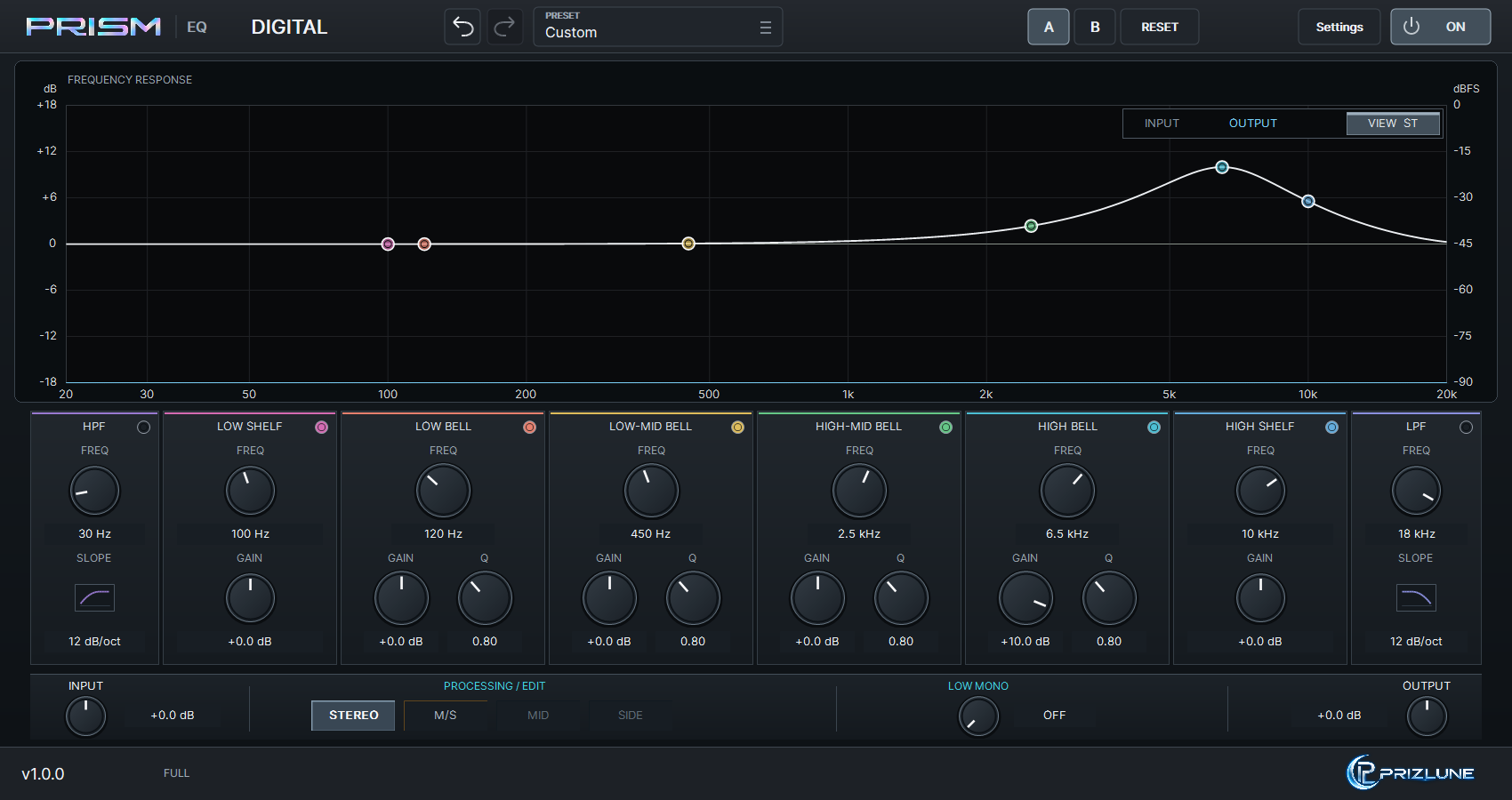
PRISM EQ - DIGITAL is an equalizer with eight fixed sections and Stereo / M/S processing. It provides clean tonal shaping and detailed frequency correction without an added saturation stage.
Quick start
- Insert [DIGITAL] PRISM EQ on a stereo track in your DAW and play your material.
- Start in STEREO. Adjust a BELL's GAIN, use FREQ to locate the range, and use Q to set the width.
- Enable HPF / LPF if needed. Match the processed level with OUTPUT, then use POWER to compare with the original.
2. Installation
Requirements
- Windows (64-bit) and a 64-bit DAW that supports VST3
- A Prizlune account (free), and an internet connection when you start a trial or activate
Download
Download the ZIP from the product page at prizlune.com/products/digital/. The trial and the full version use the same installer, so buyers use this one too.
Installing
- Right-click the downloaded ZIP and choose "Extract All".
- Run
Install PRISM EQ - DIGITAL.exefrom the extracted folder. - If "Windows protected your PC" appears, click "More info" and then "Run anyway". The installer has no code signature, so this warning may appear.
- When asked "Do you want to allow this app to make changes to your device?", click "Yes". Writing to the shared VST3 folder requires administrator permission.
- Choose a language, accept the licence agreement and follow the instructions.
Installed to: C:\Program Files\Common Files\VST3\PRISM EQ - DIGITAL.vst3
Loading it in your DAW
Start your DAW and rescan plug-ins if needed. The plug-in appears as [DIGITAL] PRISM EQ (vendor: Prizlune).
Right after installation it is NOT ACTIVATED, and audio passes through unprocessed. Follow the next chapter to start a trial or activate the full version.
Updating
Run the installer of the new version in the same way to install over the old one. Your licence, presets and display settings are kept.
Uninstalling
Run Uninstall PRISM EQ - DIGITAL.exe from the ZIP, or remove it from Windows Settings > Apps. Your licence and presets are not deleted, so a reinstall works straight away.
3. Activation and Trial
To use PRISM EQ - DIGITAL, start a trial or activate the full version with your Prizlune account (free). Before that you can still change parameters, use presets and save projects, but audio passes through unprocessed.
Status
| Footer status | Meaning | Audio |
|---|---|---|
| NOT ACTIVATED | Neither a trial nor the full version is active | Passes through |
| ACTIVATING | Waiting for approval in your browser | As before |
| TRIAL · N DAYS LEFT | Trial running; N is the days left (1 DAY LEFT on the last day) | Processed |
| TRIAL ENDED | The trial period is over | Passes through |
| FULL | Full version | Processed |
Click the footer status to open the licence screen. While NOT ACTIVATED or TRIAL ENDED, a notice bar appears at the top of the product view.

Starting the trial (14 days)
- Click START TRIAL in the notice bar. My Prizlune opens in your browser.
- Sign in with your Prizlune account. If you don't have one, you can create it on that page.
- Check that the code in the browser matches the code in the plug-in, then click Start trial on this computer.
- When the footer shows TRIAL · 14 DAYS LEFT, you're done.
Each account can use the trial once per product, and each computer once as well. During the trial every feature works as in the full version.
Activating the full version
- Buy the product at prizlune.com. It is added to the Prizlune account you buy with.
- Click ACTIVATE in the plug-in (notice bar or licence screen).
- Sign in with the account you bought with, check the code and click Activate on this computer.
- When the footer shows FULL, you're done.
Waiting for approval
After START TRIAL or ACTIVATE, a waiting screen opens in the middle of the plug-in. It shows a large code in the form XXXX-XXXX and the time remaining. Approve the request in your browser within 10 minutes. Once approved, the licence is saved on this computer and takes effect immediately.
- REOPEN BROWSER: opens the approval page in your browser again.
- CANCEL (or Esc): stops the activation and returns to the previous state.
Licence screen
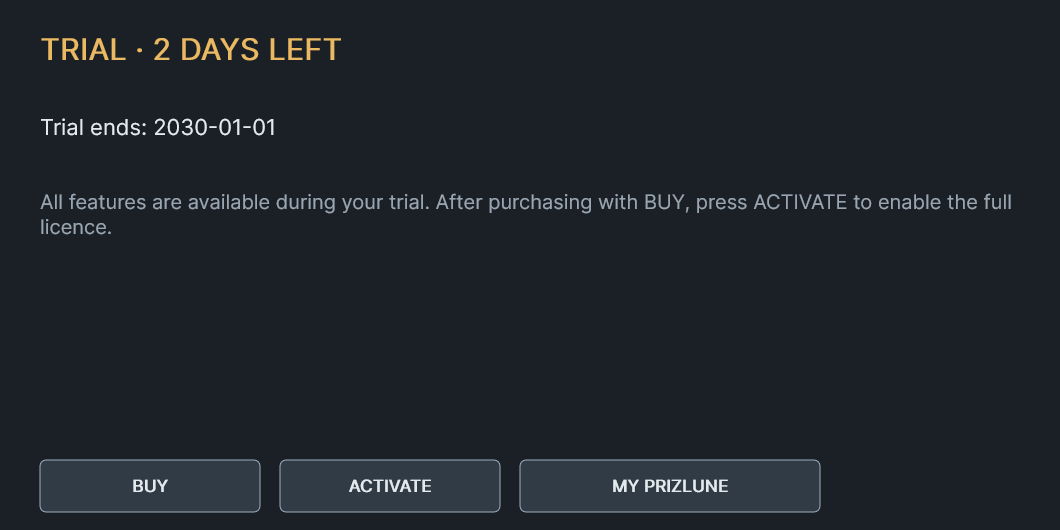
Open it from the footer status or from License at the bottom left of Settings. Close it with the × at the top right or Esc.
- Trial: shows the end date. BUY opens the purchase page; after buying, ACTIVATE switches to the full version. MY PRIZLUNE opens the member page.
- Full: shows the registered email, this computer's name and the activation date. RELOAD LICENSE reads the saved licence again.
Buying during the trial, and when it ends

When the trial ends, the TRIAL ENDED notice bar appears and audio passes through. Your settings and projects are kept. Buy with BUY and activate with ACTIVATE to keep using it.
Several computers and offline use
- License activation connects when you press START TRIAL or ACTIVATE. Activated products work offline. Optional update checks can be disabled in Settings.
- As long as you use your own account, there is no limit to the number of computers. On a new computer or after reinstalling Windows, press ACTIVATE there. You don't need to deactivate the old one.
- You can see your products and activated computers on My Prizlune (account.prizlune.com).
4. EQ sections and mouse controls
Sections run from low to high frequencies, left to right. Click the round ON/OFF switch near a section heading to enable or disable that section.
| Section | FREQ range | Function / controls |
|---|---|---|
| HPF | 20-500 Hz | Attenuates lows. FREQ / SLOPE |
| LOW SHELF | 30-500 Hz | Boosts or cuts the low side. FREQ / GAIN |
| LOW BELL | 40 Hz-1.2 kHz | Low-frequency bell. FREQ / GAIN / Q |
| LOW-MID BELL | 100 Hz-3.5 kHz | Low-mid bell. FREQ / GAIN / Q |
| HIGH-MID BELL | 400 Hz-9 kHz | High-mid bell. FREQ / GAIN / Q |
| HIGH BELL | 1.2-16 kHz | High-frequency bell. FREQ / GAIN / Q |
| HIGH SHELF | 2.5-18 kHz | Boosts or cuts the high side. FREQ / GAIN |
| LPF | 3-20 kHz | Attenuates highs. FREQ / SLOPE |
GAIN: -12 to +12 dB. Q: 0.10 to 40.0. Higher Q makes a bell narrower. Shelf sections have no adjustable Q.
SLOPE: 6 / 12 / 18 / 24 / 36 / 48 dB/oct. Higher values produce steeper attenuation. Set HPF and LPF independently: HPF attenuates the low side, while LPF attenuates the high side.
Mouse controls
| Action | Result |
|---|---|
| Drag a knob vertically | Up increases the value; down decreases it. |
| Hold Shift before starting a drag | Adjust the knob more precisely. |
| Mouse wheel | Adjust a control over its knob, value or label. |
| Double-click a knob | Restore that value to its default. |
| Click SLOPE | Choose a slope from the menu. The wheel also changes it. |
Direct keyboard entry of numbers is not supported. By default HPF / LPF are OFF; shelves and bells are ON at 0 dB GAIN.
5. Monitor and EQ curves
Spectrum and VIEW
INPUT / OUTPUT identify the input and output spectra. Click VIEW to select Stereo, Mid or Side for analysis. The display uses ST / M / S.
VIEW changes the spectrum display only. Selecting Side does not select Side for EQ editing or solo its audio. Use the MID / SIDE buttons in the lower row to choose the EQ editing target.
Combined response colors
| Mode / editing state | Combined response |
|---|---|
| Stereo | One white curve |
| M/S, editing MID | Mid in strong yellow; Side in faint green |
| M/S, editing SIDE | Side in strong green; Mid in faint yellow |
Individual curves and round nodes
Enabled sections have faint individual curves in their section colors. A section is emphasized while you drag its knob or graph node. Wheel adjustments briefly emphasize it too. In M/S mode, individual curves belong to the side currently being edited.
Drag a round node horizontally to change FREQ and vertically to change GAIN. HPF / LPF have no GAIN adjustment. Use the wheel over a BELL node to change Q.
The crosshair helps read frequency and dB. Nodes stay within their section's frequency range, listed on page 2. Double-clicking empty graph space does not add a band.
The combined curve includes the interaction of several sections. Its height does not have to equal an individual section's GAIN setting.6. Stereo and M/S
STEREO and M/S
STEREO applies the same EQ to the left and right channels. It is a useful starting point for ordinary track correction.
M/S processes the common left/right component (Mid) separately from the difference component (Side). Use it to shape central content and stereo spread independently.
Edit Mid and Side independently
- Select M/S in the lower row. Mid and Side always use independent EQ settings.
- Select MID and adjust the EQ for common content.
- Select SIDE and adjust the EQ for difference content. The emphasized response color follows the editing target.
Switching between Stereo and M/S preserves both Mid and Side EQ settings. Stereo uses the MID bank. Returning to M/S selects MID for editing.
Mid and Side EQ settings do not follow each other. Check the selected MID / SIDE button and response colors when adjusting central content and stereo spread.
MID / SIDE select what you edit; they are not solo buttons. MID / SIDE are unavailable in STEREO.7. Global controls and comparison
INPUT / OUTPUT
INPUT: -24 to +24 dB, before the EQ. OUTPUT: -24 to +24 dB, after processing. When boosts increase the level, match it with OUTPUT for a more useful tonal comparison.
LOW MONO
Gradually narrows the stereo spread below the selected frequency. It applies a 24 dB/oct high-pass filter to Side; it does not abruptly remove everything below the cutoff. It works in both Stereo and M/S.
OFF, or 20-500 Hz in 5 Hz steps. Values below 20 Hz switch it OFF. Start low and increase the frequency while listening to the bass width.
POWER
ON enables processing; OFF returns the original signal. INPUT / OUTPUT trims do not apply to that original signal. DAW bypass also switches processing.
A / B: compare two settings
The header's A / B buttons select independent comparison settings. The first switch to B copies the current A settings. After that, A and B retain their own settings. Both are stored in the DAW project.
RESET and Undo / Redo
RESET restores the current A/B bank's EQ, M/S, LOW MONO and INPUT / OUTPUT defaults. It preserves POWER and does not affect the other A/B bank. Default bells and shelves are ON at 0 dB.
Undo / Redo are the arrows left of PRESET. They undo and redo editor changes, treating one knob drag as one action. This is separate from DAW undo. Host changes or automation clear earlier local history; closing the editor ends that history.
DIGITAL has no AutoGain, oversampling or DELTA control. Match levels manually with OUTPUT.
8. Preset browser
Open, browse and load
Click PRESET in the header to open the browser in the central panel. Click PRESET again, the upper-right close button, or press Esc to close it.
- Filter the list with search, All / Factory / User / Favorites and categories.
- Click a row to select it and view its type, category and note. Selecting a row alone does not change the sound.
- Double-click, press Load, or press Enter to load it. The EQ panel returns after loading.
Navigate with the wheel, scroll bar, arrow keys, PageUp / PageDown or Home / End. DIGITAL includes the built-in Default; no additional factory bank is bundled.
Save the current sound
Choose Save Current, enter a name and select or create a category. Overwriting an existing User preset requires confirmation. User presets can be renamed or deleted; Factory presets are protected.
Use the star for favorites and Save Note to store notes. Favorites, notes and categories are stored separately from sound settings. Reopen the browser to see changes made by another instance.
Default, Custom and saved settings
Settings matching the defaults show Default. Editing a loaded sound shows Custom. Loading affects the current A/B bank. Presets contain Mid / Side EQ, M/S settings, LOW MONO and INPUT / OUTPUT.
Presets also restore the saved POWER state. Loading a preset saved with POWER OFF turns it OFF. Loading Default turns it ON. RESET behaves differently: it preserves POWER.
Projects save the sound and both A/B banks, but not the loaded preset's source name or path. A new instance restored from a project shows Default or Custom according to its settings.
Backup
User presets: C:\ProgramData\Prizlune\presets\EQ\DIGITAL\userNotes, categories and favorites: .browser-meta in that same folder. Back up both.
9. Settings
Interface size
Open Settings and use Display / UI Scale to choose 50 / 75 / 100 / 125 / 150 / 175 / 200%. A size is applied and saved only when the DAW accepts it. At 100%, the editor is 1700 x 900.
Click Settings again, the upper-right close button, or press Esc to close it. You can switch directly between Settings and PRESET. The appearance theme is fixed.
Settings → Language sets the language of Settings, the licence screen and notices: Automatic / English / 日本語. Automatic follows the Windows display language. License at the bottom left opens the licence screen.
The PRIZLUNE logo in the product footer links to Prizlune.10. Usage questions and specifications
A knob does not change the sound
Check POWER, the section's ON/OFF switch and GAIN. In M/S, check the editing target too. Side adjustments may be subtle on material with little Side content. Shelves and bells at 0 dB do not boost or cut.
VIEW changes neither the knobs nor the sound
This is normal. VIEW only selects the spectrum display. Use MID / SIDE in the lower row to choose what to edit. DIGITAL has no Side-solo listening control.
The preset name becomes Custom after opening a project
Projects do not store the preset source name. If the sound settings are intact, this is normal. Matching defaults show Default; other settings show Custom.
Using automation
Select a control from your DAW's parameter list. Mid and Side have separate parameters; Side names include Side. SLOPE is stepped, so a ramp still selects discrete slopes. Follow your DAW's instructions for automation playback and writing modes.
Specifications
| Item | Description |
|---|---|
| Product / DAW name | PRISM EQ - DIGITAL / [DIGITAL] PRISM EQ |
| Platform / format | Windows x64 / VST3-compatible DAW |
| I/O / sample format | Stereo input and output / 32-bit float |
| EQ sections | HPF, Low Shelf, 4 bells, High Shelf, LPF |
| Global processing | Stereo / M/S, LOW MONO, INPUT / OUTPUT |
| Reported latency | 0 samples; this is not a linear-phase EQ |
| Saving | DAW project: both A/B banks. User preset: current bank |
The sidebar separates Display, Language and Updates. Headings, descriptions and buttons follow the selected language; Automatic uses the operating system display language. When you open License from Settings and close it with ×, you return to the same interactive settings page.
11. Updates and the product page
Released editions include update checks. When you open the editor, the plug-in checks the public download in the background, approximately once per day. You do not need to sign in again to check for updates.
Update notification
When a newer publication is available, UPDATE appears near the version in the footer. Click it to open this product's page. Read the release information and download the update. Close your DAW before installing the downloaded update.
Settings → Updates
| Control | Action |
|---|---|
| Automatic | ON by default. Turn it OFF to disable automatic requests. This is remembered as a product preference, separate from sound settings. |
| Check now | Checks immediately, including when automatic checks are OFF. |
| Product page | Opens this product's page after public information has been received. The PRIZLUNE logo at the bottom right also opens the product page at any time. |
Working offline
If the check cannot retrieve information, check your connection and try manually later. A failed update check does not stop audio or project saving. The product continues its normal behavior for its license state; activated products work offline.
Update checks are independent of audio processing. Changing automatic checks or using a notification does not alter your sound or the parameters stored in a DAW project.
12. Troubleshooting
| Problem or message | What to do |
|---|---|
| The plug-in doesn't appear in my DAW | Rescan plug-ins in your DAW. Check that C:\Program Files\Common Files\VST3 is included in the scan and that the DAW is 64-bit. |
| The sound doesn't change | While the footer shows NOT ACTIVATED or TRIAL ENDED, audio passes through. Start a trial or activate the full version. Also check that POWER in the header is ON. |
| Could not open your browser | Press REOPEN BROWSER on the waiting screen. Also check that Windows has a default browser. |
| Not approved | The request was cancelled in the browser, or the account has no purchase of this product. Make sure you are signed in with the account you bought with, then press ACTIVATE again. |
| The request expired | It was not approved within 10 minutes. Press ACTIVATE or START TRIAL again. |
| This account or computer has already used the trial | The trial can be used once per product, per account and per computer. Buy with BUY, or press ACTIVATE if you already own it. |
| Could not save the licence | Check free disk space and that you can write to your user folder, then try again. |
| Activation failed | Check your internet connection and any security software or firewall settings, then try again. |
| I bought it but it doesn't show FULL | Check that you are signed in with the account you bought with and that the product appears on My Prizlune, then press ACTIVATE. If you bought with another email address, add that address in My Prizlune's account management and the product will appear. |
If this doesn't solve it, contact us at prizlune.com/contact/. Common questions are answered at prizlune.com/faq/.