PRISM DeEsser - 902 User Manual
1. Introduction
Overview
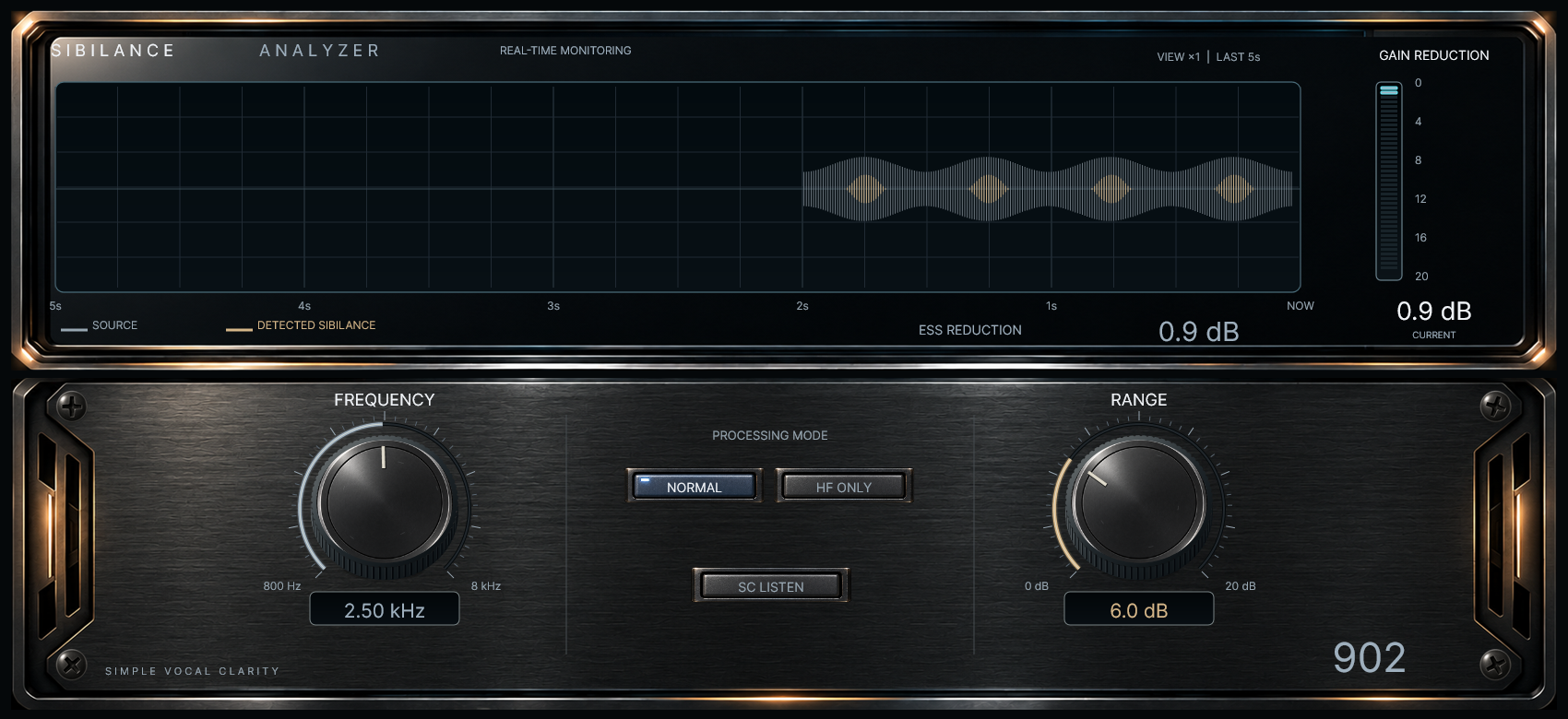
Classic Series appears at the centre of the footer. 902 is a de-esser for controlling sibilance in vocals and spoken recordings. Use FREQUENCY to locate the detection band and RANGE to set the maximum attenuation. Choose NORMAL for broadband reduction or HF ONLY to reduce the high-frequency portion.
A quick starting workflow
- Insert "[902] PRISM DeEsser" on the voice track and loop a passage containing the troublesome sibilants.
- Start with a modest RANGE. Turn on SC LISTEN and move FREQUENCY until the unwanted component is easy to identify.
- Turn SC LISTEN off. Select NORMAL or HF ONLY, then increase RANGE gradually.
- Use DELTA to hear what is being removed. If vowels or the body of the voice are prominent, revisit RANGE and FREQUENCY.
- Turn DELTA off and compare using POWER. Keep enough natural sibilance for the words to remain clear.
SC LISTEN and DELTA replace the normal output for auditioning. Check that both are off before normal playback or export.
2. Installation
Requirements
- Windows (64-bit) and a 64-bit DAW that supports VST3
- A Prizlune account (free), and an internet connection when you start a trial or activate
Download
Download the ZIP from the product page at prizlune.com/products/902/. The trial and the full version use the same installer, so buyers use this one too.
Installing
- Right-click the downloaded ZIP and choose "Extract All".
- Run
Install PRISM DeEsser - 902.exefrom the extracted folder. - If "Windows protected your PC" appears, click "More info" and then "Run anyway". The installer has no code signature, so this warning may appear.
- When asked "Do you want to allow this app to make changes to your device?", click "Yes". Writing to the shared VST3 folder requires administrator permission.
- Choose a language, accept the licence agreement and follow the instructions.
Installed to: C:\Program Files\Common Files\VST3\PRISM DeEsser - 902.vst3
Loading it in your DAW
Start your DAW and rescan plug-ins if needed. The plug-in appears as [902] PRISM DeEsser (vendor: Prizlune).
Right after installation it is NOT ACTIVATED, and audio passes through unprocessed. Follow the next chapter to start a trial or activate the full version.
Updating
Run the installer of the new version in the same way to install over the old one. Your licence, presets and display settings are kept.
Uninstalling
Run Uninstall PRISM DeEsser - 902.exe from the ZIP, or remove it from Windows Settings > Apps. Your licence and presets are not deleted, so a reinstall works straight away.
3. Activation and Trial
To use PRISM DeEsser - 902, start a trial or activate the full version with your Prizlune account (free). Before that you can still change parameters, use presets and save projects, but audio passes through unprocessed.
Status
| Footer status | Meaning | Audio |
|---|---|---|
| NOT ACTIVATED | Neither a trial nor the full version is active | Passes through |
| ACTIVATING | Waiting for approval in your browser | As before |
| TRIAL · N DAYS LEFT | Trial running; N is the days left (1 DAY LEFT on the last day) | Processed |
| TRIAL ENDED | The trial period is over | Passes through |
| FULL | Full version | Processed |
Click the footer status to open the licence screen. While NOT ACTIVATED or TRIAL ENDED, a notice bar appears at the top of the product view.

Starting the trial (14 days)
- Click START TRIAL in the notice bar. My Prizlune opens in your browser.
- Sign in with your Prizlune account. If you don't have one, you can create it on that page.
- Check that the code in the browser matches the code in the plug-in, then click Start trial on this computer.
- When the footer shows TRIAL · 14 DAYS LEFT, you're done.
Each account can use the trial once per product, and each computer once as well. During the trial every feature works as in the full version.
Activating the full version
- Buy the product at prizlune.com. It is added to the Prizlune account you buy with.
- Click ACTIVATE in the plug-in (notice bar or licence screen).
- Sign in with the account you bought with, check the code and click Activate on this computer.
- When the footer shows FULL, you're done.
Waiting for approval
After START TRIAL or ACTIVATE, a waiting screen opens in the middle of the plug-in. It shows a large code in the form XXXX-XXXX and the time remaining. Approve the request in your browser within 10 minutes. Once approved, the licence is saved on this computer and takes effect immediately.
- REOPEN BROWSER: opens the approval page in your browser again.
- CANCEL (or Esc): stops the activation and returns to the previous state.
Licence screen
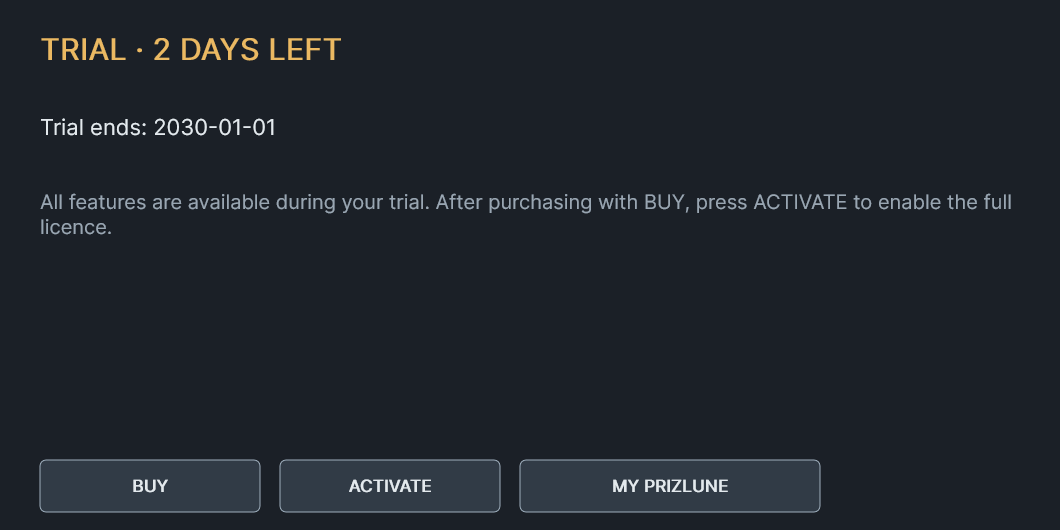
Open it from the footer status or from License at the bottom left of Settings. Close it with the × at the top right or Esc.
- Trial: shows the end date. BUY opens the purchase page; after buying, ACTIVATE switches to the full version. MY PRIZLUNE opens the member page.
- Full: shows the registered email, this computer's name and the activation date. RELOAD LICENSE reads the saved licence again.
Buying during the trial, and when it ends

When the trial ends, the TRIAL ENDED notice bar appears and audio passes through. Your settings and projects are kept. Buy with BUY and activate with ACTIVATE to keep using it.
Several computers and offline use
- License activation connects when you press START TRIAL or ACTIVATE. Activated products work offline. Optional update checks can be disabled in Settings.
- As long as you use your own account, there is no limit to the number of computers. On a new computer or after reinstalling Windows, press ACTIVATE there. You don't need to deactivate the old one.
- You can see your products and activated computers on My Prizlune (account.prizlune.com).
4. Adjusting the sound
| Control | Range / default | Purpose |
|---|---|---|
| FREQUENCY | 800 Hz - 8 kHz Default 2.50 kHz | Adjusts the detection band. Listen with SC LISTEN while locating the unwanted sibilance. Frequency travel is logarithmic. |
| RANGE | 0 - 20 dB Default 6.0 dB | Sets the maximum attenuation. It is a ceiling, rather than a fixed gain reduction; actual processing depends on the input. |
| NORMAL | Default mode | Reduces the full signal when sibilance is detected. A useful starting point when sibilants protrude above the rest of the voice. |
| HF ONLY | Alternative to NORMAL | Reduces the high-frequency portion while preserving the low-frequency portion. Compare this mode when retaining vocal body matters. |
| SC LISTEN | On / off Default off | Auditions the detector signal. This is different from both the normal processed output and the removed signal. |
| DELTA | Header Default off | Auditions the difference between input and processed output. With SC LISTEN also on, the output is detector signal minus input. Use the audition modes one at a time. |
| POWER | Header Default on | Off bypasses processing and passes the input. Use it to compare the processed and unprocessed sound. |
Knobs and value fields
The knob bodies and pointers turn with their settings. Each illuminated outer arc shows that knob's setting; read the actual attenuation on GAIN REDUCTION above.
| Action | Result |
|---|---|
| Vertical drag | Drag up to increase and down to decrease. Hold Shift for fine adjustment. |
| Mouse wheel | Over a knob, each detent changes 1% of its normalized range, or 0.1% with Shift. |
| Double-click | Returns that knob to its published default. This differs from RESET. |
| Click a value field | Type a value. Enter commits; Escape cancels. Out-of-range or unrecognized input is not applied. |
Excessive RANGE can make pronunciation unnatural or push the voice back. Judge the result in the mix, rather than choosing a setting from the meter alone.
5. Reading the monitor
The upper monitor follows the actual signal passing through the plug-in. NOW is at the right; older material moves left. It shows the last five seconds. There is no history until the host supplies audio.
| Display | How to read it |
|---|---|
| SOURCE (grey) | The input waveform, displayed from the average of left and right. It is not a waveform of only the detector band. |
| DETECTED SIBILANCE (amber) | During normal output, the removed component derived from input minus output. Its amplitude is emphasized four times for visibility; its height relative to SOURCE is not a direct reduction ratio. |
| VIEW x1 | The display scale is fixed. Quiet input is not automatically magnified. Also check the insertion point and the input signal when the waveform is small. |
| GAIN REDUCTION / ESS REDUCTION | The current reduction display uses approximately 300 ms of visual decay smoothing. This does not specify the audio release time. |
Use the display together with listening
Look for amber activity at the sibilants. If reduction continues too long or removes too much of the vowels, adjust FREQUENCY, RANGE and the processing mode.
The waveform uses an L/R average, so the phase relationship between the channels can make it look smaller. Confirm the output by listening; waveform height alone does not prove silence or a particular reduction amount.
6. Presets and comparison
PRESET
Click PRESET in the header to open the central browser. Choose a Factory or User preset to load it. Click PRESET again to close the browser. When the current controls differ from the selected preset, the name becomes Custom.
Save your current settings under a name in User. The save workflow allows cancellation without changing the sound. Search and favorites are available inside the browser.
| Factory | FREQUENCY | RANGE | Mode |
|---|---|---|---|
| Default / Vocal Default | 2.50 kHz | 6.0 dB | NORMAL |
| Ess Only | 6.50 kHz | 7.0 dB | HF ONLY |
| Soft Broadband | 3.20 kHz | 3.5 dB | NORMAL |
| Hard Sibilance | 7.20 kHz | 12.0 dB | HF ONLY |
| Dark Mic | 1.80 kHz | 8.0 dB | NORMAL |
| Ceiling Test | 8.00 kHz | 20.0 dB | HF ONLY |
A/B, RESET and Undo / Redo
A and B hold separate settings. Select the bank you want to adjust or compare. Loading a preset affects the selected bank.
RESET returns the selected A or B bank to its last loaded or named-saved sound. It does not change POWER or DELTA. After reopening a project, each restored bank sound becomes its RESET reference.
Undo / Redo reverses or reapplies editor operations. One knob drag is one operation. Preset loads and RESET are included. Editor history is not guaranteed to survive host-side parameter changes or closing the editor.
Presets store FREQUENCY, RANGE, HF ONLY and SC LISTEN, but not POWER or DELTA. Loading turns DELTA off. A User preset saved with SC LISTEN on will recall that audition state, so check the output after loading.
7. Settings
Interface size and language
Open Settings in the header to choose UI SCALE. Click Settings again or press Escape to return to the product panel.
Settings → Language sets the language of Settings, the licence screen and notices: Automatic / English / 日本語. Automatic follows the Windows display language. License at the bottom left opens the licence screen.
8. Usage questions and specifications
| Symptom | What to check |
|---|---|
| No audible change | Check POWER, make sure RANGE is above zero, and locate the sibilance again with FREQUENCY. Also check the licence status in the footer (NOT ACTIVATED and TRIAL ENDED pass audio through). |
| Only highs or the difference are heard | Turn off SC LISTEN and DELTA. Use the audition modes one at a time. |
| Unnatural voice or missing sibilants | Reduce RANGE. Compare NORMAL with HF ONLY and adjust FREQUENCY. |
| Small or absent waveform | Check that the DAW is supplying audio, the insertion point and input level. VIEW is fixed at x1 and the waveform uses an L/R average. |
| A typed value is not applied | Use a value within the control range. Enter commits and Escape cancels. |
| Plug-in missing from the DAW list | Use a Windows x64 VST3 host and install with the DAW closed. Restart and rescan the host if necessary. |
Specifications
| Item | Specification |
|---|---|
| Product / developer | PRISM DeEsser - 902 / Prizlune |
| Format | Windows x64 / VST3 / Mono and Stereo |
| Latency | 0 samples |
| Automation | FREQUENCY, RANGE, HF ONLY, SC LISTEN, BYPASS and DELTA |
| Saving | The DAW project stores A/B and parameter values. User presets can store settings separately. |
When reporting a problem, include the DAW, operating system, the actions that trigger it, the displayed licence status and the settings needed to reproduce it.
The sidebar separates Display, Language and Updates. Headings, descriptions and buttons follow the selected language; Automatic uses the operating system display language. When you open License from Settings and close it with ×, you return to the same interactive settings page.
9. Updates and the product page
Released editions include update checks. When you open the editor, the plug-in checks the public download in the background, approximately once per day. You do not need to sign in again to check for updates.
Update notification
When a newer publication is available, UPDATE appears near the version in the footer. Click it to open this product's page. Read the release information and download the update. Close your DAW before installing the downloaded update.
Settings → Updates
| Control | Action |
|---|---|
| Automatic | ON by default. Turn it OFF to disable automatic requests. This is remembered as a product preference, separate from sound settings. |
| Check now | Checks immediately, including when automatic checks are OFF. |
| Product page | Opens this product's page after public information has been received. The PRIZLUNE logo at the bottom right also opens the product page at any time. |
Working offline
If the check cannot retrieve information, check your connection and try manually later. A failed update check does not stop audio or project saving. The product continues its normal behavior for its license state; activated products work offline.
Update checks are independent of audio processing. Changing automatic checks or using a notification does not alter your sound or the parameters stored in a DAW project.
10. Troubleshooting
| Problem or message | What to do |
|---|---|
| The plug-in doesn't appear in my DAW | Rescan plug-ins in your DAW. Check that C:\Program Files\Common Files\VST3 is included in the scan and that the DAW is 64-bit. |
| The sound doesn't change | While the footer shows NOT ACTIVATED or TRIAL ENDED, audio passes through. Start a trial or activate the full version. Also check that POWER in the header is ON. |
| Could not open your browser | Press REOPEN BROWSER on the waiting screen. Also check that Windows has a default browser. |
| Not approved | The request was cancelled in the browser, or the account has no purchase of this product. Make sure you are signed in with the account you bought with, then press ACTIVATE again. |
| The request expired | It was not approved within 10 minutes. Press ACTIVATE or START TRIAL again. |
| This account or computer has already used the trial | The trial can be used once per product, per account and per computer. Buy with BUY, or press ACTIVATE if you already own it. |
| Could not save the licence | Check free disk space and that you can write to your user folder, then try again. |
| Activation failed | Check your internet connection and any security software or firewall settings, then try again. |
| I bought it but it doesn't show FULL | Check that you are signed in with the account you bought with and that the product appears on My Prizlune, then press ACTIVATE. If you bought with another email address, add that address in My Prizlune's account management and the product will appear. |
If this doesn't solve it, contact us at prizlune.com/contact/. Common questions are answered at prizlune.com/faq/.